
In this guide
A Ring Doorbell that says Offline is not the same problem as an online doorbell whose Live View keeps spinning. Offline means the device has lost its path to Ring. A failed Live View can still be a phone, app, VPN, or real-time bandwidth problem. Start by naming the state correctly; it determines whether you should work at the doorbell, the router, or the phone.
Offline or Live View failure? Use this split first
| What you see | What it proves | Best next test |
|---|---|---|
| Red Offline badge in the Ring app | The doorbell is not currently reaching Ring | Open the badge and Device Health; note the error, power, and network |
| Online, but Live View spins on one phone | The doorbell can report status; the viewer path may be failing | Force-close Ring, disable VPN, then test another phone or Ring.com |
| Online, but Live View fails for every user | A real-time video path or device problem is more likely | Compare event history, RSSI, and a device reboot |
| Live View works, but old recordings will not play | Live video is healthy; history or subscription is a separate layer | Check the account, subscription, and recording date |
| Several home devices went offline together | The doorbell is probably not the only affected endpoint | Check modem, router, outage, and recent Wi-Fi changes |
Read Device Health before touching the router
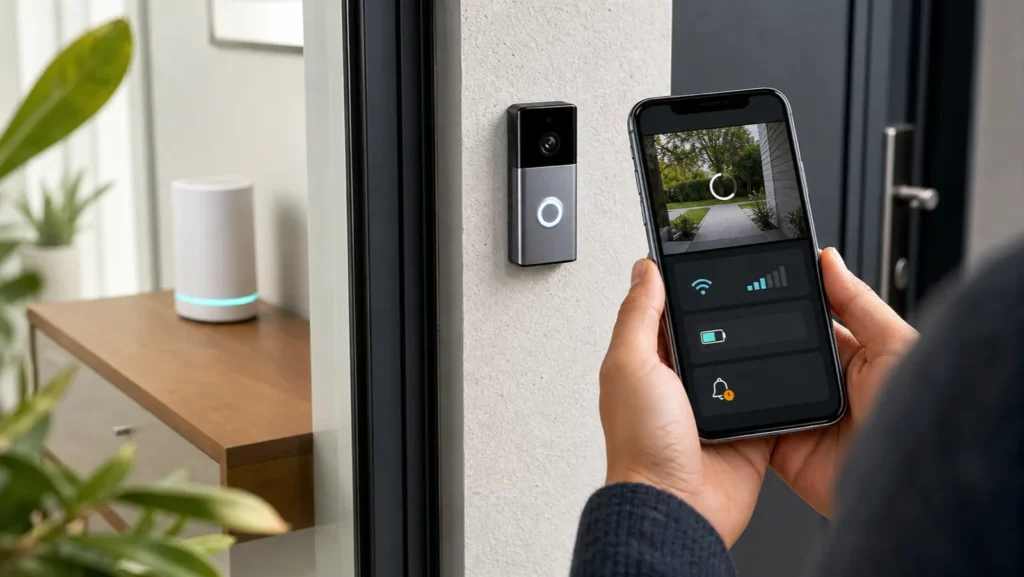
In the Ring app, open the menu, choose Devices, select the doorbell, then open Device Health. Save a screenshot of the power source, battery level, network name, and signal reading. Also tap the Offline badge if one appears; Ring may show a model-specific error code and reconnect flow.
RSSI is a received-signal measurement. Values farther below zero represent a weaker link. Ring describes -80 or worse as very poor and likely to cause intermittent service or offline events. Treat RSSI as evidence, not a repair by itself: a strong reading with repeated outages shifts attention to power, router stability, or the device, while a very poor reading justifies a placement or mesh test.
The two-location Wi-Fi test
A doorbell is fixed to a wall, so moving it is rarely the clean first experiment. Move the network side instead. Place a mesh point or access point temporarily inside the home near the door, without putting electronics outdoors, and compare Device Health after the connection stabilizes. If RSSI and Live View improve together, distance or building material is part of the problem.
If nothing changes, restore the access point to its original location. Do not leave a temporary open network or disable Wi-Fi security. Also check whether the router name, password, or band settings changed shortly before the outage.
Power and Wi-Fi are separate checks
A charged battery does not prove a Wi-Fi connection. Likewise, a wired doorbell can have enough power to light up but still lose the network. For a removable battery model, charge the pack fully and reseat it. For a wired model, note any low-voltage warning in Device Health and use Ring’s model-specific power instructions; do not open mains wiring or bypass a transformer.
If the device is online, Ring lets you reboot it from Device Health. If it is offline, that remote command cannot reach it. Depending on the model, a brief battery removal, a short setup-button action, or a temporary breaker power cycle may restart it. Use the official instructions for the exact model before pressing and holding any button, because a long hold may begin a reset instead of a reboot.
Live View fails while the doorbell remains online
- Try a second viewer. Test another authorized phone or a supported desktop browser at Ring.com.
- Change the phone connection. Compare home Wi-Fi with cellular data. Turn off a VPN or filtering profile for one test.
- Restart the Ring app. Force-close it, reopen it, and install the current update from the official app store.
- Compare recorded events. If events arrive but Live View alone fails, the real-time session is the narrower problem.
- Reboot the online doorbell. Use Device Health, wait a few minutes, then run one Live View test.
Standard Live View does not require a Ring subscription. Recording and viewing saved events do. That distinction matters: buying a plan will not repair an offline device or a Live View connection that never starts.
When reconnecting is justified
Use the in-app reconnect flow after you have confirmed that the doorbell is offline and the intended Wi-Fi network is working. Keep the phone near the doorbell, know the network password, and follow the model-specific light prompts. Reconnecting is appropriate after a router replacement, SSID/password change, or a persistent offline state. A factory reset is later: it can remove settings without fixing weak signal or unstable power.
What not to change during the first pass
- Do not factory-reset before saving Device Health and the error code.
- Do not change channel, security mode, network name, and mesh placement together.
- Do not assume a full battery rules out a power-contact problem.
- Do not expose a temporary open Wi-Fi network to make setup easier.
- Do not work on a wired transformer or mains circuit unless qualified.
When the evidence points to service
Contact Ring with the exact model, Device Health screenshot, error code, battery or power state, RSSI before and after the close-access-point test, and whether Live View failed on one viewer or all viewers. Service becomes more reasonable when stable power and a verified nearby Wi-Fi path still produce repeated offline events, or when the unit shows moisture, impact damage, swelling, or unusual heat.
Related guides
- Nest Wifi Offline: router, point, or ISP?
- Blink Camera Offline: camera or Sync Module?
- Ring Doorbell Offline guide in Arabic
- Wi-Fi and router troubleshooting hub
Sources and review
Editorial review: August 1, 2026. The workflow follows current Ring documentation and keeps model-specific reset or electrical work outside the generic steps.
- Ring Support: fixing offline devices
- Ring Support: Live View for doorbells and cameras
- Ring Support: rebooting a doorbell or camera
- Ring Support: understanding RSSI and Wi-Fi recommendations
FAQ
Why is my Ring Doorbell offline even with a full battery?
Battery charge and network reachability are separate. Check the saved network, RSSI, router changes, and the battery’s physical seating.
Why does Live View fail while motion recordings still appear?
Live View needs a real-time connection between the doorbell and viewer. Test another viewer and connection before reconnecting the doorbell.
Does Ring Live View require a subscription?
Standard Live View does not. A subscription is used for eligible recording and saved-video features.
Should I reset the Ring Doorbell first?
No. Save Device Health, test power and RSSI, compare viewers, and try a reboot before a factory reset.