
In this guide
A USB-C plug that fits is not proof that the port accepts charging, and a 100W label on the adapter is not proof that 100W reaches the laptop. The usable power is limited by the weakest part of the chain: port, charger, cable, Power Delivery negotiation, and the laptop’s workload.
Quick answer
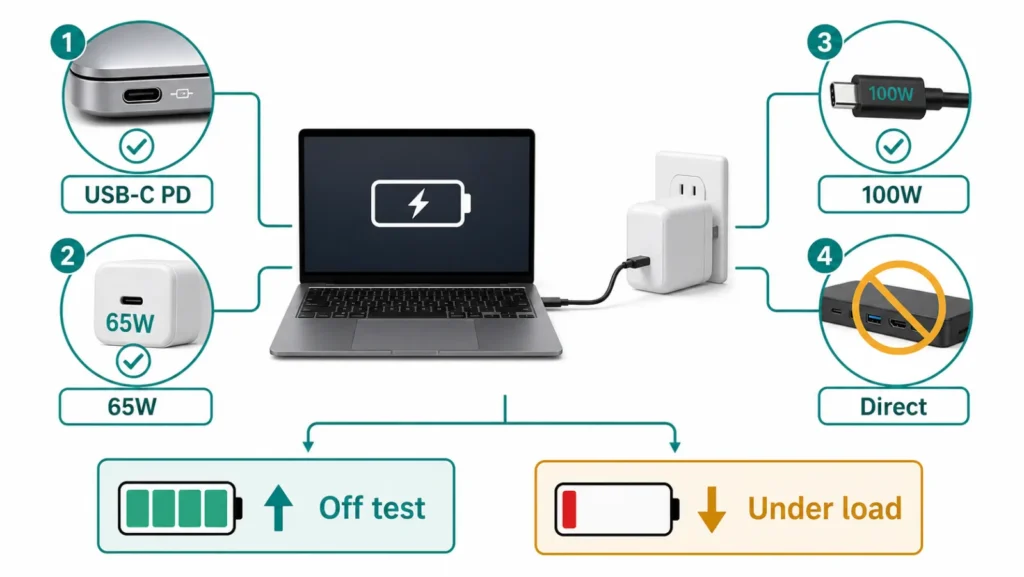
Check the wattage of the original adapter or the laptop’s model specifications. Connect a suitable USB-C PD charger and rated cable directly to the charging-capable port, without a dock. Shut the laptop down for 10 to 15 minutes. If the battery rises while off but falls during use, power is reaching the machine but is probably below its demand. If no charging state appears, test the correct port, known-good cable, and compatible charger one at a time. A battery that pauses around 80% may be using Smart charging rather than failing. Stop if the plug heats unusually, smells, discolors, or cuts out when touched.
Read the symptom before replacing the battery
| What you see | Likely path | Best next test |
|---|---|---|
| No charging icon at all | Wrong port, cable, adapter, or hardware | Original path, direct connection |
| Charges while off, drains while working | Input power below current demand | Compare wattage and remove the dock |
| Stops near 80% with a heart icon | Smart charging or vendor limit | Read the battery message |
| One cable works and another does not | Cable rating or damage | Use a documented PD cable |
| Only one USB-C port charges | Different port capabilities | Check the model manual and port symbols |
1. Prove that the USB-C port accepts power
USB-C describes the connector shape, not every feature behind it. A laptop can have data-only, display-capable, Thunderbolt or USB4, and charging ports that look identical. Look for a charging symbol and check the manual for the exact model. Connect the adapter directly to that port. Microsoft lists the wrong port and charging through a hub or dock among the causes of a Slow charger or PC isn’t charging notice.
2. Match the laptop’s requirement, not the biggest number
Read the output rating on the original adapter or the manufacturer’s support page. A 30W phone charger may add charge while a 65W laptop is asleep, yet lose ground when the CPU, GPU, and display are active. A reputable higher-wattage USB-C PD charger does not normally force all of its capacity into the laptop; compatible devices negotiate a shared profile. The adapter still needs to offer the voltage and current profiles the laptop requests.
Do not infer compatibility from the connector alone. Some computers use vendor-specific behavior, and gaming or workstation laptops may accept USB-C charging only for light use while requiring their larger adapter for full performance.
3. Treat the cable as a power component
A cable can charge a phone and still be unsuitable for a laptop. Check the maker’s specification for supported wattage and USB Power Delivery. Replace a cable that is frayed, discolored, unusually warm, or sensitive to movement. Avoid extensions and angle adapters during diagnosis.
- Start with the original adapter and cable when available.
- Connect directly, with no dock, monitor, or hub.
- Test one charging-capable port at a time.
- Watch the Windows battery message for ten minutes at light load.
- Change only one part before repeating the test.
4. Run the powered-off test
Record the battery percentage, shut Windows down, and leave the laptop connected for 10 to 15 minutes. A higher percentage proves that some power arrived; it does not prove the path can support the machine under load. Restart, use the laptop lightly, then reproduce the normal workload. If the battery falls only under load, compare adapter wattage, cable rating, and any dock limit before blaming battery health.
If the battery does not rise while off and Windows never detects a charger, test a known-good compatible adapter and cable. A result that changes when the plug is moved points to a damaged cable or loose port and should not be treated as a permanent workaround.
5. Separate Smart charging from a fault
Windows and manufacturer utilities can pause charging near 80% to reduce battery wear when the laptop spends long periods plugged in. Windows may show a heart on the battery icon. Read the message and vendor utility before disabling the feature. Smart charging does not explain a battery that drains while the laptop is shut down or a connector that runs hot.
6. Update firmware only after the hardware path is known
Install Windows updates, then obtain USB, Thunderbolt, power-management, BIOS, or firmware updates from the support page for the exact laptop model. Some vendors have published model-specific USB-C charging fixes. A BIOS package for one ThinkPad generation is evidence that firmware can matter, not permission to install it on another brand or model. Keep stable power connected and never interrupt a BIOS update.
When to stop testing
- The connector or port becomes hot, smells, sparks, or changes color.
- Charging cuts in and out when the plug is touched gently.
- The battery or chassis is swollen.
- Two documented chargers and cables fail in the correct port.
- The laptop cannot complete its official firmware diagnostics.
Give support the exact model, charger and cable ratings, port used, Windows message, and results while off versus under load. Those details are more useful than “USB-C does not work.”
Sources and review
- Microsoft: Fix USB-C problems in Windows
- Microsoft: PC is charging slowly or discharging while plugged in
- Microsoft: Use Smart charging in Windows
- Lenovo: example of a model-specific USB-C firmware fix
Related guides
Frequently asked questions
Can every USB-C port charge a laptop?
No. The connector can expose different features. Verify the charging port in the model manual.
Is a 100W charger safe for a 65W laptop?
With compatible USB-C PD hardware, the devices negotiate power. Use a reputable charger and properly rated cable.
Why does the battery drain while plugged in?
The delivered power may be lower than the laptop’s current load because of the adapter, cable, dock, or negotiated profile.
Does stopping at 80% mean the battery is bad?
Not necessarily. Check Windows Smart charging or the manufacturer’s battery limit first.
Editorially reviewed in August 2026. Port features and charging requirements vary by exact model; the manufacturer’s specifications remain the final reference.