
In this guide
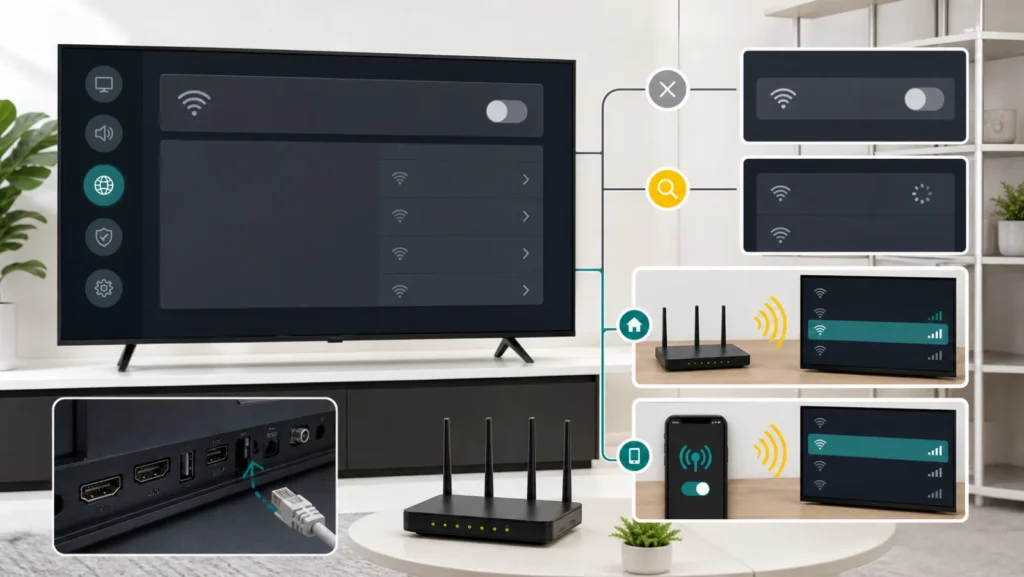
“LG TV Wi-Fi disabled” is not one fault. The menu can be greyed out, the scan can return no networks, one home SSID can be absent, or the TV can connect to the router but fail at DNS or internet. Record the exact screen before changing settings; each state starts at a different layer.
Greyed out, no networks, one SSID, or no internet?
| Observed state | What it narrows | Best next test |
|---|---|---|
| Wi-Fi option greyed out | TV state, Ethernet priority, software, or wireless hardware | Remove Ethernet and full power restart |
| Network list is empty | Radio scan or environment | Phone hotspot next to TV |
| Other networks appear, yours does not | Router band, channel, hidden SSID, or range | 2.4 GHz test and hotspot |
| SSID appears but password fails | Credentials or security compatibility | Forget network and type password manually |
| Connected to gateway, no internet | DNS, router, or ISP | Network Status and another device |
1. Record the menu state and model
Open All Settings and note the webOS version, model, and whether an Ethernet cable is connected. On newer models the path is General then Network; older webOS versions may place it under Connection or Network. Photograph the greyed control or empty scan and the Network Status icons.
Do not confuse “No Signal” on HDMI with no Wi-Fi. If the screen itself shows no input, use the input and cable path. If apps alone fail while Wi-Fi remains connected, use the app and service path instead.
2. Remove wired priority and perform a full restart
Disconnect Ethernet from the TV for the wireless test. Turn the TV off, unplug its power cord, wait about two minutes, and reconnect it. Restart the router separately and wait until its internet service is fully ready before scanning again. A quick standby cycle may not restart every webOS and wireless component.
Disable Quick Start+ temporarily if your model offers it, then repeat one full power cycle. Quick Start+ keeps parts of the TV in standby for faster startup, so a full restart gives stronger evidence than repeatedly toggling the Wi-Fi menu. Record whether the option becomes available after this single change.
3. Use a phone hotspot as a clean A/B test
Create a temporary hotspot beside the TV with a simple visible name and password, preferably using a compatible 2.4 GHz mode when the phone allows it. Do not expose personal data and turn the hotspot off after testing.
- If the hotspot appears and connects, the TV’s radio works; inspect the home router’s band, channel, security, and range.
- If the hotspot appears but will not connect, retype the password and inspect TV software and time.
- If no hotspot or neighboring networks appear, the problem is closer to the TV’s scan, software, or wireless hardware.
- If it connects but apps still fail, test Network Status and one second app.
LG also uses a hotspot test in its current app troubleshooting to separate the home network from the TV. This controlled comparison is more useful than changing DNS before the TV can see any network.
4. If only your home SSID is missing
Confirm on a phone beside the TV that the network is visible and working. Move the router closer for a test, or remove dense obstacles. Enable a 2.4 GHz SSID temporarily if the TV model does not support the router’s current band or channel. Avoid hidden SSIDs during diagnosis.
Do not assume Smart Connect or a single combined name is always the problem; prove it by creating a temporary compatible SSID. If a mesh or router is offline for other devices too, start with the modem, primary router, and mesh-point test.
5. If networks appear but connection fails
Select the saved network, choose Forget when available, and type the password manually. Check capitalization and spaces. Use WPA2 or a security mode supported by the exact TV; enterprise credentials and captive portals may not be supported. Keep DHCP enabled during a normal home-network test.
After connection, open Network Status. LG displays the path through TV, gateway, DNS, and internet. A break at the TV-to-gateway segment differs from a gateway that works but DNS or internet fails. Compare with the Network Status and DNS isolation method; menu names differ, but the layered evidence is the same.
6. If Wi-Fi remains greyed out
Confirm Ethernet is removed, Airplane or restricted setup modes are not active, and the TV is not in a hotel or commercial configuration. Run Settings Help or Support diagnostics if offered. Check for a webOS update using Ethernet if wired networking works, then restart once after the update.
If Ethernet works but the Wi-Fi menu stays unavailable and no scan occurs after a full restart, do not repeatedly factory-reset the TV. Save the model, software version, MAC information privately, and the hotspot result for LG. The wireless module, cable, or board may require inspection.
7. Connected to Wi-Fi but apps do not load
Test two apps and the LG content store. If one app fails while another works, update or reinstall only the failing app and check its service. If all apps fail, review Network Status, router internet, DNS, date and time. A TV can associate with Wi-Fi without reaching the internet.
For an LG television with sound issues rather than network failure, use the LG Sound Test and output guide. Keeping symptoms separated prevents an AV Reset from becoming an irrelevant network fix.
8. Factory reset is not a radio test
A factory reset removes accounts, app sign-ins, picture settings, and network data. Before considering it, prove that Ethernet is removed, power restart changed nothing, the hotspot is invisible or fails, router compatibility has been tested, and software is current. Photograph settings and record app credentials first.
If the Wi-Fi control is physically unavailable, reset may erase useful evidence without repairing hardware. Contact LG when both home networks and a nearby hotspot remain invisible, or when the menu repeatedly greys out after updates and full restarts.
Evidence for LG support
- Exact model, webOS/software version, and country.
- Whether Wi-Fi is greyed out, scan is empty, or only one SSID is missing.
- Result with Ethernet removed and after a full power restart.
- Whether a nearby 2.4 GHz hotspot appeared and connected.
- Network Status break point: TV, gateway, DNS, or internet.
- Whether Ethernet works while Wi-Fi does not.
Frequently asked questions
Why is the LG TV Wi-Fi option greyed out?
It can be a temporary TV state, wired priority, software condition, or wireless hardware path. Remove Ethernet and perform a full restart before reset.
Why does the TV see other networks but not mine?
That points toward router band, channel, hidden name, security, or range rather than a completely dead TV radio.
Does connected Wi-Fi prove internet access?
No. Use Network Status to separate the TV-to-router link from DNS and the ISP path.
Sources and review
- LG: network status, Wi-Fi menu, hotspot, and app isolation
- LG: webOS network-menu paths and router checks
- LG: Quick Start+ behavior and network-related standby settings
Reviewed by the SMSM Hub editorial team on July 23, 2026. Menu locations, supported bands, update paths, and wireless hardware vary by LG model, webOS generation, and country.
If the TV sees Wi-Fi but your doorbell remains offline, compare the fixed outdoor endpoint with the Ring RSSI and closer-access-point test.