
In this guide
An LG TV can show a perfect picture and still produce no sound because audio has been muted, routed to Bluetooth or HDMI ARC, lost at one input, or interrupted inside the TV. The useful first question is not “Which setting should I reset?” It is: does the television fail its own audio check? Sound Test is the decision boundary between a TV-level problem and a source or connection problem.
Quick diagnosis
- Unmute the TV and raise volume with the LG remote, not only the cable-box or soundbar remote.
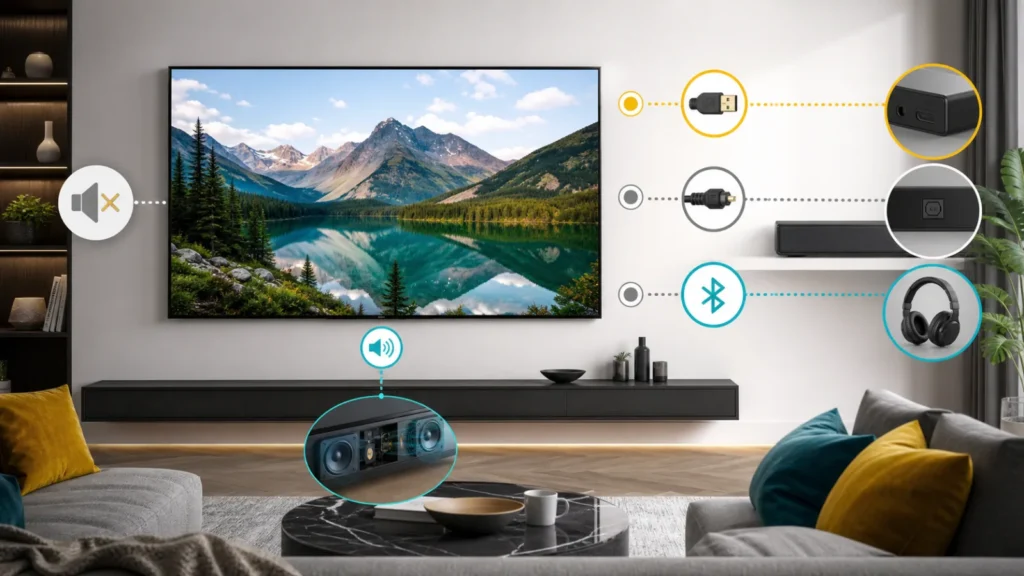
- Set Sound Out temporarily to TV Speaker or Internal TV Speaker. Disconnect Bluetooth headphones, optical audio, receivers, and the HDMI ARC/eARC cable for this baseline.
- Run the built-in Sound Test or the audio self-diagnosis available on your webOS version.
- If the test plays clearly, the TV speakers work; compare an internal streaming app with each HDMI source. If the test is silent or distorted, document the result and move toward LG support or service.
| Result | What it isolates | Next move |
|---|---|---|
| Sound Test passes | Internal speakers and core TV audio can work | Test source, HDMI path, app, and Sound Out |
| Sound Test fails | Problem remains at TV level | Restart once, record model/webOS, contact LG |
| Internal app works, HDMI is silent | Source format, cable, input, ARC, or receiver | Connect source directly and test PCM |
| TV Speaker works, soundbar does not | External output or handshake | Rebuild ARC/eARC or optical path |
1. Build a clean TV-speaker baseline
Open Settings, find Sound, and choose TV Speaker or Internal TV Speaker. Menu labels vary by model. Turn off Bluetooth output and unplug the optical cable and HDMI cable connected to the ARC/eARC port. This is a diagnostic baseline, not a permanent loss of your soundbar setup.
Use the TV remote to remove mute and set volume to a visible mid-level. Some external devices have their own mute state, and HDMI-CEC can make one remote appear to control another device. The on-screen volume indicator alone does not prove which speakers are selected.
2. Run LG Sound Test on your webOS version
LG has changed the menu path across generations. On some older sets it appears under Settings > All Settings > Sound > Sound Test. On other webOS versions it is under Support > Additional Settings > Sound Test. Newer models may place it in Support > Quick Help > Check Items > Self-Diagnosis of TV Settings > Sound > No Sound. Use the search or Quick Help feature if the exact labels differ.
LG notes that starting Sound Test can switch output back to the internal speakers. Listen for clarity on both sides. If the test tone plays, do not replace the television speakers: restore one source at a time and find where sound disappears. If the test is silent even with Internal TV Speaker selected, restart the TV once, update its software if offered, and preserve the failed-test result for support.
3. Compare an internal app with HDMI
Open a built-in app such as YouTube or another known working service. Then play a different channel or video to avoid diagnosing a silent clip. If internal-app audio works but one HDMI source is silent, the television audio hardware has passed a useful real-world test. Focus on that player, console, set-top box, cable, or receiver.
Connect the source directly to the TV and bypass the receiver, HDMI switch, and capture device. Select the correct TV input. On the source, test a basic PCM or Stereo output temporarily. If direct PCM works, reconnect the soundbar or receiver and enable advanced formats one at a time. For another direct-path example, see our Apple TV picture-but-no-sound guide.
| Audio path | Controlled test | Conclusion if sound returns |
|---|---|---|
| HDMI source to receiver to TV | Source directly to TV | Receiver, switch, or HDMI handshake is involved |
| TV to soundbar by ARC/eARC | Internal TV Speaker | TV content is fine; external return path needs work |
| Bluetooth headphones | Disconnect and select TV Speaker | Audio had been routed wirelessly |
| One streaming app | Second app and broadcast input | App, title, account, or app format is involved |
4. Rebuild ARC or eARC one device at a time
Reconnect the soundbar to the HDMI port labeled ARC or eARC on both devices. Turn on the LG HDMI control setting, commonly called SIMPLINK, if the soundbar requires it. Select HDMI ARC as Sound Out. Begin with eARC disabled and Digital Sound Output set to PCM for compatibility, then test Auto, Pass Through, or eARC only after basic sound works.
A cable that carries picture on another port does not automatically prove stable eARC return audio. Use a known-good cable suitable for the devices, and power both devices down before rebuilding the connection. If the TV reports Wi-Fi or network trouble rather than audio trouble, keep that separate and use the LG TV Wi-Fi disabled guide.
5. Check software without erasing your setup
Restart the TV and the affected source. Check Settings > Support > Software Update while the TV has a stable connection. Update the affected streaming app as well. Do not factory-reset the television as an opening move; it removes tuning, accounts, picture settings, and accessibility choices without proving whether HDMI or the source caused the silence.
Some LG support flows offer an A/V Reset after pressing Mute three times. That reset changes audio and video settings, so use it late, photograph calibrated settings first, and follow the instructions for your exact model. It should come after Sound Test and source isolation, not before them.
6. When service makes sense
Contact LG or a qualified repair provider when the built-in Sound Test remains silent or distorted on Internal TV Speaker, headphones and external outputs are disconnected, and a restart and available software update do not change the result. Also stop if the TV clicks, smells hot, shuts down, or has impact or liquid damage. Do not open the rear cover; internal power sections can remain hazardous.
Record the full model number, webOS version, Sound Test result, whether sound works in an internal app, and whether headphones or optical output work. That evidence is more useful than saying only “no audio.” If a console also shows no picture, solve the video path separately with the PS5 HDMI no-signal guide.
Frequently asked questions
Why does my LG TV show volume but make no sound?
The indicator can appear while Sound Out is assigned to Bluetooth, optical, ARC/eARC, or another device. Set Internal TV Speaker and run Sound Test to establish a baseline.
Should Digital Sound Output be PCM or Pass Through?
PCM is a useful temporary compatibility test for an HDMI source or soundbar. Once basic sound works, restore the format your audio equipment supports. The best permanent choice depends on the receiver, soundbar, content, and model.
Does a failed Sound Test prove the speakers are broken?
It proves the problem remains at TV level under the tested setup, but not which component failed. LG support can use the model and test result to select the next diagnostic or service step.
Sources and review
This workflow follows LG’s current TV audio problems and Sound Test guidance, its no-audio troubleshooting guide, and the manufacturer’s intermittent sound checks. The article was reviewed on July 22, 2026. Menu names and capabilities vary by model, region, and webOS release, so the manual for the full model number remains authoritative.