
In this guide
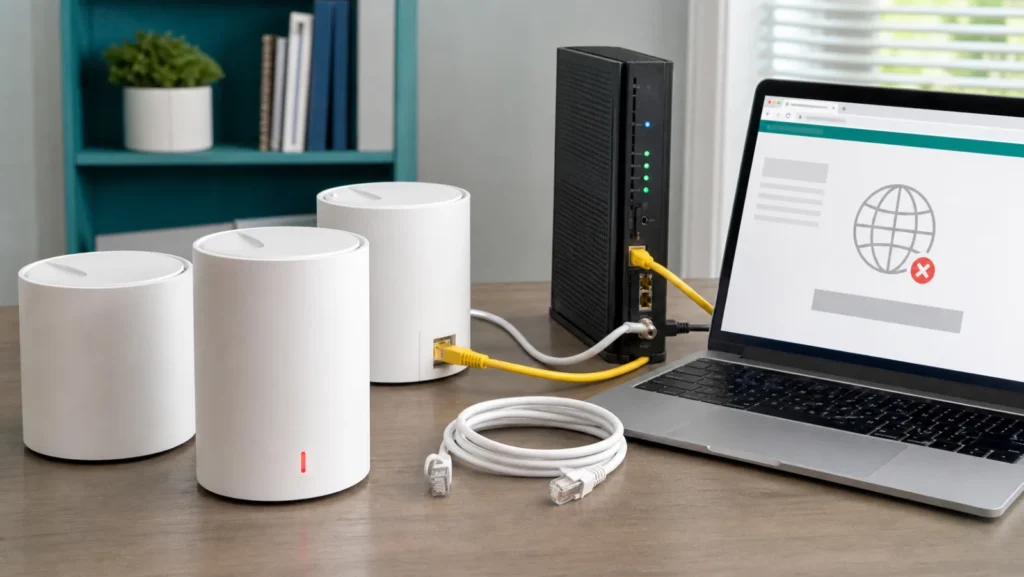
A solid red light on the main TP-Link Deco is an internet-path warning, not proof that the mesh unit has failed. The fastest diagnosis is to identify which node is the main Deco, prove whether the ISP modem has service, and then check the one Ethernet path between them. A factory reset before those tests can erase a working mesh configuration while leaving the outage untouched.
First identify whether the red node is main or satellite
TP-Link’s current solid-red guidance applies specifically to the main Deco. A satellite showing red or pulsing red can mean that it has lost its link to the main unit, so moving it closer or checking wireless backhaul is a different path. In the Deco app, open the network map and note the label assigned to each node before unplugging anything.
| What is red? | Most useful meaning | First test |
|---|---|---|
| Main Deco, solid red | Main unit cannot reach the internet | Modem service and WAN cable |
| One satellite, red | Backhaul to main is weak or lost | Move it near the main Deco |
| Every Deco turns red together | Shared modem, ISP, or main-node issue | Test at the modem |
| Internet works but LED remains red | Status detection, DNS, app, or firmware state | Compare app WAN status and several sites |
| LED is pulsing, not solid | Model-specific setup or disconnection state | Read the exact model LED table |
Map the physical internet path
Trace one cable at a time: the provider line enters a modem or optical network terminal, one Ethernet cable leaves its LAN port, and that cable enters the main Deco. In normal wireless-router mode, do not connect a satellite directly to the modem in place of the main node. Photograph the ports before moving cables so you can restore the original layout.
Check the modem’s online or internet indicator using the provider’s documentation. A lit power lamp alone does not prove service. If the modem has multiple LAN sockets, some providers activate only one. If your internet comes directly from an Ethernet wall outlet, treat that outlet as the provider handoff and test accordingly.
Prove whether the ISP modem provides internet
- Disconnect the main Deco’s WAN cable from the modem.
- Connect a laptop or a previously working router to the same modem port using the same cable.
- If the provider binds service to one device, power-cycle the modem and wait for it to register.
- Check whether the test device receives an address and opens more than one website.
- Restore the Deco connection after recording the result.
TP-Link explicitly recommends this direct-modem test. If the test device also has no internet, stop changing Deco settings and contact the ISP. Ask whether there is an outage, an account or activation problem, PPPoE credentials, a required VLAN, or device/MAC binding. Our router red internet-light guide helps separate provider and home-network evidence.
Compare the Ethernet cable and ports
Reseat both plugs until their clips engage. Replace the cable with a known-good short Ethernet cable, then test another supported LAN port on the modem and the alternate auto-sensing port on a compatible Deco model. Change one variable at a time. A cable can negotiate intermittently even when its plastic jacket looks intact.
Do not use a wall run, passive splitter, powerline adapter, or Ethernet switch during this isolation test. Connect modem to main Deco directly. If the direct path works, add the intermediate device back later and identify where the link fails.
Power-cycle in an order that allows a new lease
Turn off the modem and main Deco. Leave them off for about a minute as TP-Link advises for setup failures. Power the modem first and wait until its provider-facing status is stable. Then power the main Deco and allow several minutes for startup. Finally reconnect satellites if you had isolated them.
This order matters when a cable modem or ISP keeps the previous device identity. Repeatedly switching both devices on and off at random can hide whether the modem registered before Deco requested its WAN lease.
Read WAN details in the Deco app
| App result | What it suggests | Next decision |
|---|---|---|
| No WAN IP address | Cable, modem lease, PPPoE, VLAN, or ISP binding | Verify provider requirements |
| WAN IP exists but websites fail | DNS or upstream routing may be involved | Compare IP access and DNS |
| App reports Offline but clients browse | Cloud/status detection mismatch | Update app/firmware and test multiple clients |
| Main is online, satellite is red | Backhaul problem, not WAN outage | Relocate or compare Ethernet backhaul |
| Connection drops under load | Cable, power, modem, or firmware instability | Record timing and event logs |
Verify ISP connection type before changing DNS
Some providers use Dynamic IP, others require PPPoE username and password, static values, or an IPTV/internet VLAN. If an old router works but Deco does not, compare its WAN connection type without exposing credentials. Confirm the required values with the ISP rather than guessing.
DNS changes help only after Deco has a valid WAN connection. TP-Link lists public DNS as a later step, not the first repair. Set it in the Deco app only after documenting the original values. If there is no WAN IP, changing DNS cannot create the missing provider session.
Use MAC Clone only when the evidence fits
An ISP or modem may remember the MAC address of the previous router. If the old router or a directly connected laptop receives internet but Deco does not on the same cable and settings, MAC binding becomes plausible. First power-cycle the modem to release the old association. If that fails, ask the ISP to clear or register the device, or use Deco’s documented MAC Clone function.
Do not clone random addresses or duplicate a device that will remain online. Record the original Deco MAC and cloned source. A duplicate can create intermittent connectivity that looks like a mesh fault.
Do not factory-reset until you can rebuild the network
A reset removes the local configuration, node associations, Wi-Fi name, parental controls, reservations, and possibly provider settings. It does not repair an ISP outage or damaged cable. Before reset, make sure you know the Deco account, provider connection type, PPPoE credentials if used, VLAN values, and every custom setting that must be restored.
Reset only after TP-Link support or the exact-model procedure calls for it, or when the app cannot manage a known-good unit. Reset the correct node and wait for the documented LED sequence; holding buttons during power-up can invoke a different recovery behavior on some hardware.
When the main Deco itself becomes suspect
- The ISP modem works with another router through the same known-good cable.
- The provider has released any MAC binding and confirmed the connection type.
- The main Deco gets no WAN link on either supported port.
- It overheats, restarts, or loses power with the correct adapter.
- Another Deco works as main after a documented role change, while this unit does not.
Save the model, hardware version, firmware version, serial number, app screenshot, WAN status, modem model, and direct-test result before contacting TP-Link. For broader Wi-Fi coverage symptoms after internet returns, use the weak Wi-Fi placement guide; for a WAN cable warning, see TP-Link WAN unplugged diagnosis.
Sources and review
- TP-Link: main Deco solid red light and five-step diagnosis
- TP-Link: unable to connect during main Deco setup
- TP-Link: model-specific Deco LED meanings
Frequently asked questions
Does solid red mean the Deco is broken?
No. On the main Deco it normally means no internet connection. Prove the modem, cable, and ISP settings before judging the hardware.
Should I reset every Deco node?
No. A reset removes configuration and is not the first response to a modem or ISP failure.
Why does my old router work but Deco stays red?
Compare connection type, VLAN, cable and ISP MAC binding. The modem may need a full power-cycle or the ISP may need to release the old device.