
In this guide
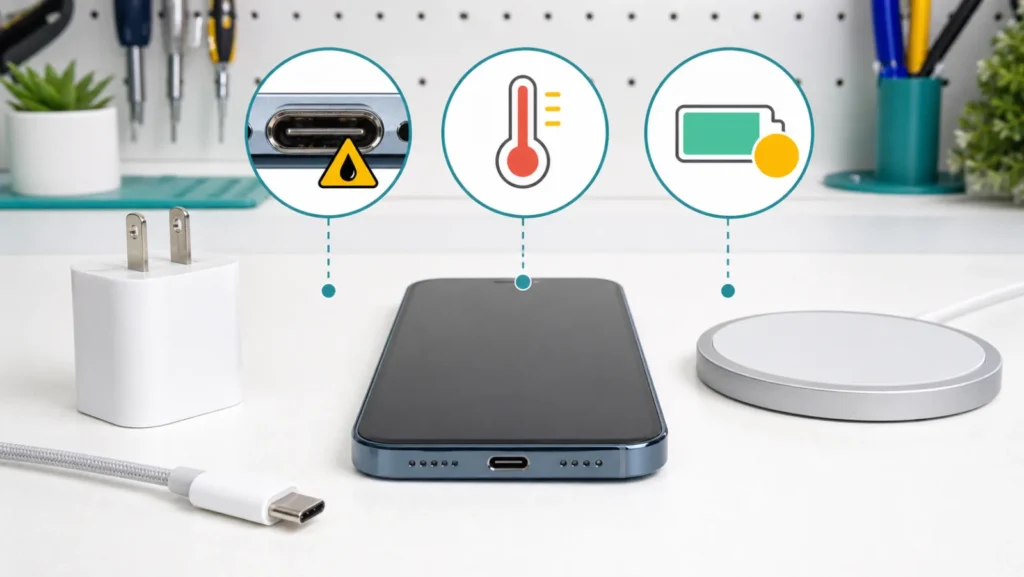
An iPhone 16 that will not charge, charges slowly, stops near 80 percent, or shows a liquid warning is presenting four different cases. The fastest safe diagnosis is to identify the on-screen state, then change one part of the charging path at a time. Random port cleaning and repeated emergency overrides can turn a recoverable condition into connector damage.
No charge icon, Charging On Hold, or liquid alert
| What the iPhone shows | Likely category | First safe action |
|---|---|---|
| No charging icon with cable connected | Outlet, adapter, cable, port, or system | Known-good direct wall path |
| Charging On Hold: iPhone Temperature | Thermal charging protection | Stop use and move to a moderate room |
| Liquid Detected in USB-C Connector | Moisture on connector, cable, or accessory | Disconnect and air-dry |
| Slow Charger in Battery settings | Source cannot provide optimal power | USB-C PD adapter and compliant cable |
| Stops at 80 percent without alert | Charge Limit or Optimized Charging may be active | Check Settings > Battery > Charging |
1. Build one known-good wired charging path
Connect a compliant USB-C cable to a compatible USB-C power adapter and plug it directly into a working wall outlet. Apple says a 20W or higher USB-C adapter can provide faster charging on supported iPhone models. Avoid a keyboard port, unpowered hub, questionable car socket, or multiport dock during the first test because each adds another variable.
Inspect the cable and adapter for torn insulation, bent parts, heat discoloration, or a loose connector; do not use damaged accessories. Test a second known-good compliant cable and adapter separately. If both fail only with this phone, the evidence moves toward the iPhone or its software. If the original cable also fails on another compatible device, retire the cable.
Apple recommends leaving a depleted device connected for about 30 minutes, then restarting it and continuing to charge. For an unresponsive screen, follow the correct force-restart sequence for the model rather than holding random button combinations. If the phone is black and gives no sign of life, use the iPhone black-screen and safe-start path.
2. Inspect the USB-C port without digging
Power down when practical and use a bright light to look across the port opening. A connector that will not seat fully, moves unusually, or charges only when held at an angle needs service-oriented inspection. Do not put a pin, blade, cotton swab, paper towel, or metal tool into the port. Do not spray cleaner or compressed air into it.
If the USB-C plug seats firmly but charging is intermittent, test while the phone lies still and record whether movement changes the icon. Also note whether the same port recognizes a computer or a compatible accessory. Charging and data observations together help a technician, but a successful data connection does not guarantee full charging performance. For broader accessory failures, see USB-C accessory not detected: power or data.
3. If the message says Charging On Hold
Apple explains that iOS may slow or pause charging when the iPhone is too hot or too cold. Charging resumes automatically when the battery returns to a safe temperature. Move the phone away from direct sunlight or a hot car, stop games, camera recording, navigation, or other heavy use, lock the screen, and remove a case if it is retaining heat.
Do not place a hot iPhone in a refrigerator or freezer, and do not cool it with ice or moisture. Let it return gradually to normal room temperature. Apple lists 0 to 35 degrees Celsius as the ambient range for charging performance. The protection applies to wired, MagSafe, and other wireless charging, so changing to MagSafe does not bypass a genuine temperature hold.
If heat returns during ordinary charging in a moderate room, record battery level, adapter, cable, case, running app, and room condition. Compare with the dedicated iPhone 16 Charging On Hold guide before assuming the USB-C port is defective.
4. If iPhone reports liquid in USB-C
Disconnect the cable immediately. Apple warns that charging while the connector is wet can corrode pins and cause permanent damage. Hold the iPhone with the connector facing down and tap it gently against your hand to remove excess liquid, then leave it in a dry area with airflow.
Apple says you may try reconnecting after at least 30 minutes. If the alert returns, moisture remains; drying can take up to 24 hours. Do not use an external heat source, compressed air, rice, cotton, or paper inside the connector. Wireless charging may still be used if the back of the iPhone is completely dry and the phone is not thermally limited.
An emergency override exists, but it accepts corrosion risk and is not a routine troubleshooting step. If the alert appears with one particular dry cable, that cable or accessory may be damaged. If it appears repeatedly with known-good Apple or compliant accessories after full drying, arrange service. The complete safe-drying sequence is in the iPhone Liquid Detected guide.
5. Slow charging and the 80 percent question
Open Settings > Battery. Newer iOS versions can identify a Slow Charger, and Apple notes that USB-A charging on iPhone 15 and later is limited compared with suitable USB-C Power Delivery equipment. A charger can be safe yet slower; measure progress over a fixed period with the screen locked instead of judging by a few minutes of active use.
If charging stops around 80 percent, first check for a temperature message. Then open Charging settings and review Charge Limit and Optimized Battery Charging. These features intentionally control how full or how quickly the battery charges to reduce battery wear. Turning a feature off for a test is different from diagnosing a no-charge state at every percentage.
If the phone reaches a normal charge but drains unusually fast after a software update, that is a consumption problem rather than a failed USB-C path; use the iOS 26 battery-drain evidence checklist. For a newer model that charges but repeatedly pauses near its selected ceiling, compare the message and Battery settings with the iPhone 17 heat, charge-limit, and charger test. These neighboring symptoms need battery and usage evidence, not port cleaning.
6. Use MagSafe as an A/B test, not a permanent verdict
With the back dry and the phone at normal temperature, test a known-good MagSafe or Qi-certified charger connected to an adequate adapter. Wireless charging succeeds while two known-good wired paths fail is useful evidence for USB-C inspection. Wired charging succeeds while wireless fails points to alignment, case, charger, adapter, debris between surfaces, or the wireless path.
Remove cards, magnetic plates, and a thick or incompatible case for the test. Center the iPhone on the charger and confirm the charging animation. Wireless charging generates heat, so stop if the phone becomes unusually hot or shows Charging On Hold.
When to book service
- Two known-good direct wall charging paths produce no charge after restart and a reasonable wait.
- The USB-C plug will not seat, feels loose, has visible damage, or works only at an angle.
- A liquid alert returns after up to 24 hours of proper drying with multiple known-good accessories.
- The phone becomes unusually hot, smells electrical, swells, or has impact damage.
- Charging repeatedly stops at low percentages without a temperature or charging-feature explanation.
Before service, back up the iPhone when possible and record the iOS version, battery percentage, exact alert, accessories tested, and whether MagSafe works. Do not erase the phone merely to test a physical connector. A technician can use the controlled A/B results to avoid replacing the wrong part.
Frequently asked questions
Can I clean the iPhone 16 port with a pin?
No. A pin can short or bend contacts. Use only a visual inspection and professional service when debris or damage prevents a firm connection.
Does Charging On Hold mean the battery is bad?
No. It is an automatic temperature protection message. Charging should resume when the device returns to a normal temperature.
Is rice safe after a liquid warning?
No. Apple specifically advises against rice because particles can damage the iPhone. Use a dry area with airflow.
Sources and review
- Apple Support: If your iPhone or iPod touch will not charge
- Apple Support: Charge and connect with USB-C on iPhone
- Apple Support: Liquid-detection alert and safe drying
- Apple Support: Thermally limited charging
Reviewed by the SMSM Hub editorial team on August 9, 2026. Charging messages and Battery menu labels can vary by iOS version and region.