
In this guide
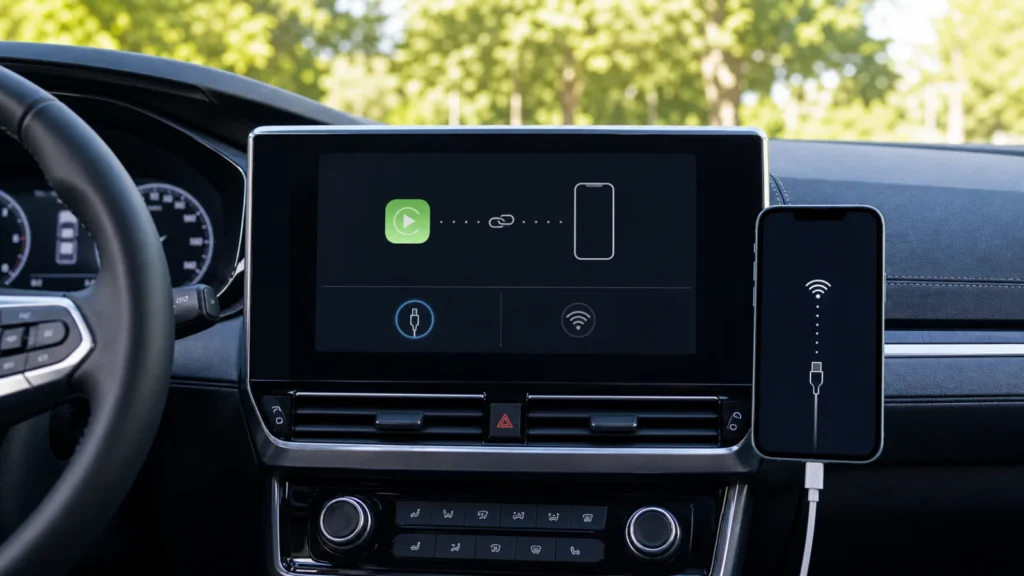
When Apple CarPlay is not working, the fastest fix depends on one observation: does the car fail to see the iPhone, does wired CarPlay charge without opening, or does wireless CarPlay connect and then drop? Those symptoms point to different layers. Treating all of them as “a Bluetooth problem” usually leads to repeated pairing, lost settings, and no useful result.
Match the symptom before changing settings
Start with the car parked and the ignition in the normal accessory or running position. Note the iPhone model, iOS version, car year, stereo model, and whether the same combination worked before. A screenshot or short note about the last successful connection is more useful than resetting every network setting.
| What you observe | Most useful first test | What it does not prove |
|---|---|---|
| CarPlay never appears | Confirm vehicle compatibility, the correct USB port or wireless pairing mode, Siri, and Screen Time access | It does not prove the phone or stereo is defective |
| The iPhone charges but CarPlay stays closed | Try a direct data cable and another CarPlay-capable port | Charging alone does not confirm that the cable carries data |
| Wireless CarPlay connects, then drops | Check Wi-Fi, Bluetooth, Auto-Join, saved cars, and vehicle firmware | A strong cellular signal does not test the local CarPlay link |
| Only one iPhone fails | Compare its restrictions, iOS version, connector, and saved car profile | The car is not automatically at fault |
| Every iPhone fails in one car | Check the selected source, stereo software, and vehicle-specific setup | Replacing a phone cable may not address a wireless or stereo issue |
Wired CarPlay: charging is not the same as data
- Use the intended port. Many cars have several USB sockets, but only one supports CarPlay. Look for the CarPlay or smartphone symbol and confirm the port in the vehicle manual.
- Remove the adapter chain. Connect the iPhone directly with one suitable cable. Apple notes that some adapter, cable, and entertainment-system combinations can interrupt wired CarPlay.
- Try one known-good data cable. A cable can still charge while its data path is unreliable. If the connector is loose, inspect the iPhone port for visible debris or damage rather than inserting metal tools.
- Unlock the iPhone and select CarPlay. If it does not start automatically, select the CarPlay source on the vehicle display.
- Compare one variable at a time. A second cable, then a second supported port, tells you more than changing both together.
If the phone itself will not charge reliably, use the separate iPhone USB-C charging diagnosis. If the car reports an unsupported accessory, compare the steps in USB-C accessory not detected before blaming CarPlay.
Wireless CarPlay: Bluetooth starts the conversation, Wi-Fi carries it
Wireless CarPlay needs more than an ordinary Bluetooth audio pairing. On the iPhone, open Settings > Bluetooth and confirm Bluetooth is on. Then open Settings > Wi-Fi, select the CarPlay network if shown, and verify Auto-Join. Put the vehicle in wireless or Bluetooth pairing mode; on many vehicles this begins by holding the steering-wheel voice button.
Next open Settings > General > CarPlay. If the car is present but the connection has become inconsistent, choose the car, tap Forget This Car, and complete one clean setup. Do not erase all iPhone network settings first. If ordinary Wi-Fi is also unstable, work through the iPhone Wi-Fi checks before a reset.
Three settings that quietly block CarPlay
Siri is off
Apple requires Siri for CarPlay. Confirm Siri is enabled, then retest while parked. A working Bluetooth audio stream does not establish that CarPlay is allowed to launch.
Screen Time restricts CarPlay
Open Settings > Screen Time > Content & Privacy Restrictions > Allowed Apps. When restrictions are active, CarPlay must be allowed. This is especially relevant on managed, child, or recently restored iPhones.
The vehicle is on the wrong source or old firmware
Select CarPlay on the display instead of assuming it will take over automatically. If every compatible iPhone fails in the same car, check the vehicle manufacturer’s instructions and stereo firmware. Record the current software version before any update.
A controlled ten-minute test
- Restart the iPhone and fully restart the vehicle system once.
- Confirm the latest iOS version available for the iPhone and note the vehicle software version.
- Test the supported wired or wireless path without adapters.
- Confirm Siri, CarPlay restrictions, Bluetooth, Wi-Fi, and Auto-Join as applicable.
- Forget only this car and pair it again if the saved profile appears to be the failing layer.
If one iPhone works and another does not, the comparison is valuable: keep the car, port, and cable unchanged while checking the failing iPhone. If no iPhone works, take the vehicle year, trim, stereo model, and firmware version to the manufacturer. Our repair guides explain how to preserve observations before service, while the Bluetooth pairing guide is useful when the problem also affects non-CarPlay devices.
Sources and review
This guide was reviewed on August 1, 2026 against Apple’s current CarPlay connection and troubleshooting instructions. The vehicle manual remains the final reference for supported ports, pairing mode, and stereo updates.
Frequently asked questions
Why does my iPhone charge but CarPlay not work?
The socket or cable may supply power without a reliable data connection, or the car may be using a charge-only USB port. Test a direct data-capable cable in the port identified for CarPlay.
Should I reset all network settings?
Not as a first step. Confirm Wi-Fi, Bluetooth, Auto-Join, restrictions, and the saved car first. Forgetting only the affected car preserves unrelated Wi-Fi and Bluetooth settings.
When is the vehicle the likely side of the fault?
If several compatible, updated iPhones fail in the same car using the documented setup, check the stereo source, supported port, vehicle firmware, and manufacturer service information.