
In this guide
An iPhone liquid-detection alert is a stop sign for the wired connector, not proof that the phone is ruined. The phone has detected moisture in the USB-C or Lightning connector, on the cable, or on an attached accessory. Disconnect both ends first. Then use the wording of the alert, the cable that triggered it, and a timed drying test to decide whether you are dealing with real moisture or one damaged accessory.
Fast answer
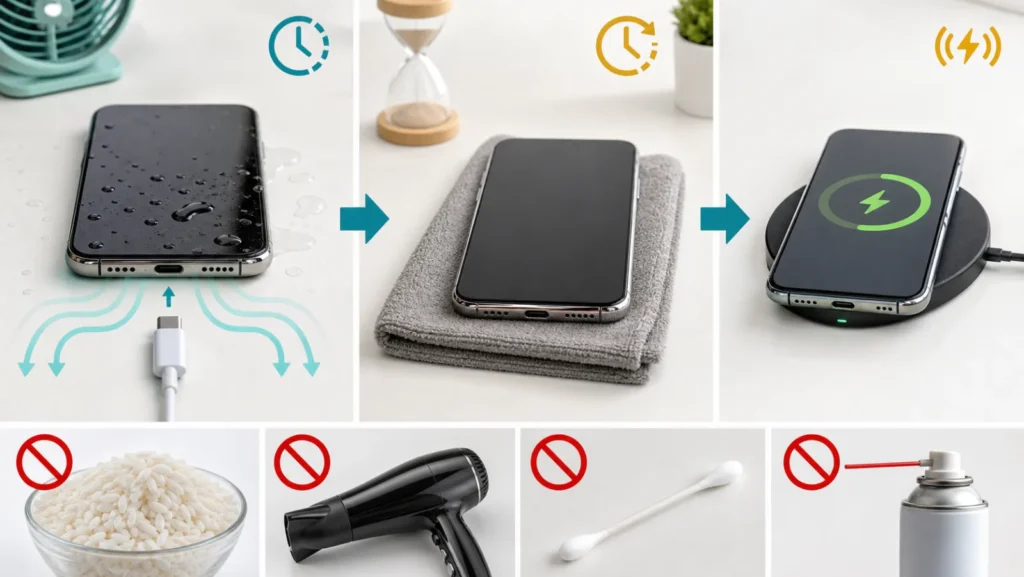
Unplug the cable from the iPhone and from its adapter. Hold the connector downward and tap the phone gently against your hand, then leave it in a dry place with airflow. Apple says to try again after at least 30 minutes; if the alert returns, drying can take up to 24 hours. Do not use rice, heat, compressed air, a cotton swab, or paper inside the port. Wireless charging is an option only when the back of the iPhone is dry. Emergency Override can charge through a wet connector, but it accepts a corrosion and damage risk and should remain an emergency choice.
Read the alert before changing the charger
| What you see | What the iPhone detected | Best next test |
|---|---|---|
| Liquid Detected in USB-C Connector | Moisture at USB-C, cable, or accessory | Disconnect immediately and dry both ends |
| Charging Not Available | Liquid detected on a Lightning charging path | Wait before retrying wired charging |
| Alert with one cable only | That cable or accessory may be wet or damaged | Let it dry, then test a known-good cable |
| No alert, but charging still fails | Power, cable, port, heat, or adapter issue | Use the broader charging diagnosis |
First five minutes: remove power and excess liquid
- Disconnect the cable or accessory from the iPhone.
- Disconnect the other end from the adapter, computer, or car.
- Remove visible water from the outside with a soft dry cloth.
- Hold the connector downward and tap the phone gently against your hand.
- Place it in a dry area with normal airflow.
Do not keep reconnecting the cable every few minutes. Each attempt can put voltage back on damp pins. Water resistance is not the same as a permanently waterproof connector, and resistance can decline with wear or repair.
The useful timeline is 30 minutes to 24 hours
Apple recommends waiting at least 30 minutes before the first wired retry. That is a checkpoint, not a promise that every connector will be dry. If the same alert appears again, disconnect it and continue drying. Moisture under the pins may need up to a day to leave fully.
Test with the phone at room temperature in a ventilated place. A cool, dry desk is better than a sealed drawer. Do not place the phone on a radiator, in direct sun, in a freezer, or in front of hot air. A normal room fan can move air around the device, but do not force compressed air into the connector.
Rice, swabs, and a hair dryer make the test worse
Apple explicitly warns against rice because small particles can enter and damage the connector. A cotton swab or folded tissue can leave fibers or push contamination deeper. External heat can affect seals and battery safety, while compressed air can move liquid farther into the device.
Do not insert metal, a brush, or a cleaning pick just because the port looks dark. If dried debris is visible after a full day and the alert persists with multiple known-good cables, stop experimenting and arrange service.
When is Emergency Override appropriate?
The override exists for an urgent need to charge when no safer option is available. It does not certify that the connector is dry. Charging wet pins can cause corrosion, permanent connector damage, or unreliable accessories later. Avoid using it for convenience or an overnight charge.
If the back of the phone is completely dry and the model supports it, a Qi-certified wireless charger avoids the wired connector while you wait. Remove any water from the case and back first, and monitor temperature. If the phone becomes unusually hot, stop charging.
Wet phone or bad cable? Use a controlled comparison
After the drying window, begin with the cable that triggered the alert only if it is also completely dry and undamaged. If that cable alone reproduces the alert while a known-good Apple or certified cable does not, the accessory becomes the stronger suspect. Apple advises contacting the accessory maker when one cable repeatedly triggers the warning.
If every known-good cable triggers the alert in a dry phone, service is the safer route. If the warning disappears but the iPhone still does not charge, move to the iPhone USB-C charging decision guide. A phone that stops near 80 percent without a liquid alert belongs to the heat, charge limit, or adapter path.
Stop and request service at these signs
Stop using the connector if it looks burned or green, feels loose, smells unusual, or repeatedly shows the alert after a full dry period with several cables. Service is also appropriate after salt water, a sugary drink, or a large immersion because residue remains after the water evaporates.
If the phone is swelling, painfully hot, smoking, or restarting after liquid exposure, power it down if that can be done safely and move it away from flammable material. Do not charge it wirelessly. For heat without liquid exposure, use the iPhone charging-temperature guide.
Keep the diagnosis attached to the exact message
A liquid alert blocks the connector to protect hardware. It is different from Optimized Battery Charging, a charge limit, an unsupported accessory message, or a dead adapter. Record the alert wording, the cable, the exposure, and how long the phone dried. That history is more useful to support than repeatedly dismissing the message.
For the same decision in another language, see the Arabic iPhone liquid guide or the English repair hub.
Sources and review
- Apple Support: liquid-detection alerts on iPhone
- Apple iPhone User Guide: handling and connector safety
- Apple Support: wireless charging guidance
Frequently asked questions
How long should an iPhone connector dry?
Try again after at least 30 minutes. If the alert returns, Apple says complete drying can take up to 24 hours.
Does rice remove the liquid alert?
No. Apple warns that rice particles can damage the connector.
Can I use wireless charging?
Yes, if the iPhone supports it and the back of the phone is completely dry.
Why does one cable trigger the alert on a dry phone?
The cable or accessory may be wet or damaged. Let it dry and compare it with a known-good cable.