
In this guide
“No signal” before the Xbox logo is not the same fault as a black screen after the logo. The first means the TV has not confirmed a video path. The second proves the cable carried the startup image, making resolution, refresh rate, HDR or one application more relevant. That timing should decide the next test.
Classify the screen before changing settings
| What you see | Evidence gained | First action |
|---|---|---|
| No signal from power-on | HDMI link is unconfirmed | Input, HDMI OUT, cable and direct TV |
| Logo, then black | Initial video reached the TV | Resolution, HDR or app test |
| Picture on another TV | Console can output video | First TV port or compatibility |
| Black only through receiver | Intermediate device changes the link | Keep console connected directly |
| No picture on two displays | Cable, port or console remains suspect | Cross-test before service |
Build the smallest HDMI path
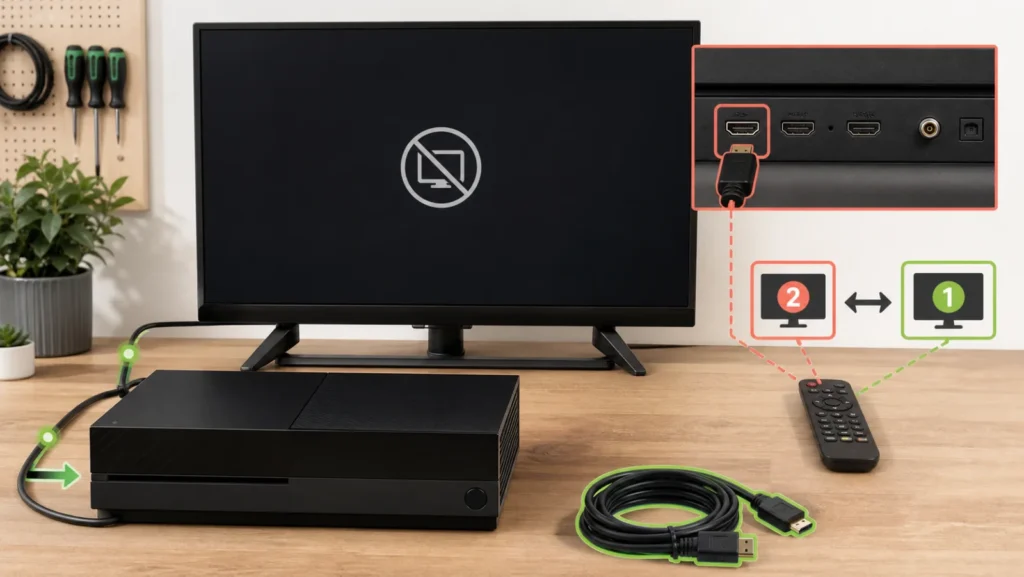
- Select HDMI 1, 2 or 3 manually on the TV.
- Verify the cable is in the console’s HDMI output, not an input on an older model.
- Remove adapters, extenders, capture cards and receivers.
- Reseat both ends without bending or holding the plug at an angle.
- Test a second input on the same TV.
- Test a second known-good cable and then another display.
Xbox Support recommends a direct TV connection during display troubleshooting. If the connector moves, pins look damaged or the picture appears only while pressure is applied, stop forcing it and use our Xbox HDMI port inspection guide.
Use a test matrix instead of random swaps
| Single change | Result | Interpretation |
|---|---|---|
| Other input, same cable | Picture returns | First TV input is implicated |
| Other cable, same input | Picture remains stable | Retire the first cable |
| Direct TV connection | Picture returns | Receiver or capture path needs review |
| Other display | Still no picture | Console output becomes more likely |
Write each result down before changing the next component. Swapping cable, port, receiver and resolution together can restore the picture without identifying why.
Change resolution only after HDMI works
If the logo appears or the console works on a second screen, begin from a widely supported setting such as 1080p. Then enable 4K, HDR and a higher refresh rate one at a time. Use a cable and TV port rated for the selected bandwidth. Low-resolution startup differs by Xbox model, so follow the official sequence for the exact console rather than a button combination copied for another model.
| Stable baseline | Option added | If black returns |
|---|---|---|
| Direct 1080p | 4K | Check cable and high-bandwidth TV port |
| 4K stable | HDR | Review HDR support for that input |
| TV direct stable | AV receiver | Update and configure the receiver |
| Dashboard stable | One game or app | Treat the app separately |
For 4K and 120 Hz specifically, follow our 4K/120 Hz compatibility test. For intermittent loss or flashing, use the Xbox HDMI flicker guide.
Separate video failure from power failure
A console that shuts down seconds after startup needs a power path, not only display troubleshooting. Note whether its light stays on, startup sound plays and the controller remains connected. If power drops, remove external USB accessories and follow model-specific power guidance. If the console stays on and audio continues while the TV says no signal, the HDMI path remains the stronger lead.
When repair is the sensible next step
Do not open the console or insert tools into HDMI. Request service after two verified cables and two displays fail, or when the port is loose, visibly damaged, affected by liquid or smells burnt. Record console model, startup sound, light behavior and the complete test matrix.
Sources and review
Frequently asked questions
Should I reset the Xbox first?
No. Validate the input, output, cable and direct TV path first.
Why does the logo appear before black?
The initial video mode worked; a later mode or application is now more relevant.
Does another TV help?
Yes. It separates console output from compatibility with the original TV.