
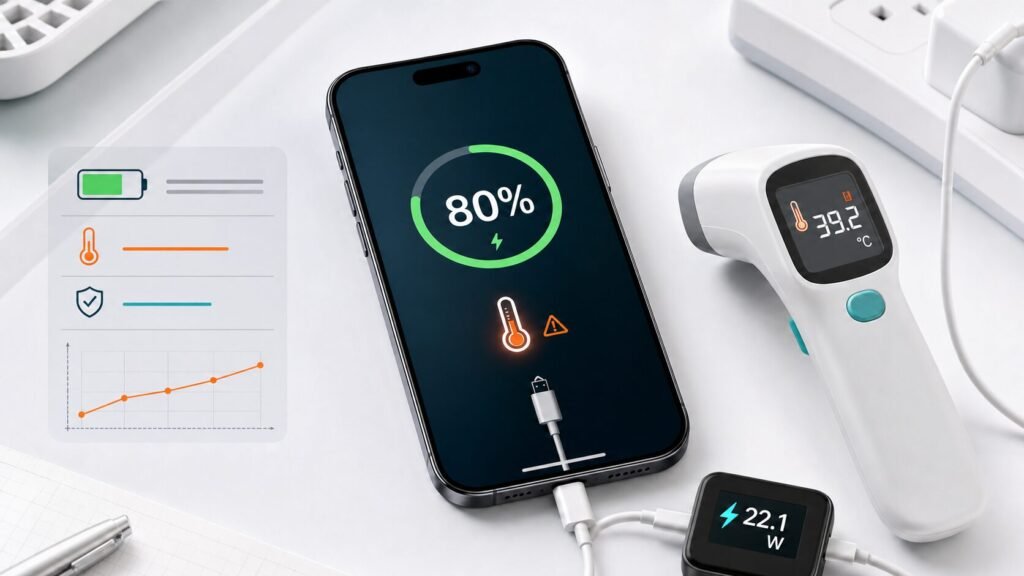
Before buying another charger, open Battery settings. Your iPhone 17 might be stopping intentionally because of temperature or Charge Limit, and iOS can identify a slow charger. This guide is built around a simple rule: identify the exact device, model, symptom, and risk level before spending money on parts or service.
Device, model, and search intent
The target device is Apple iPhone, the model context is iPhone 17, iPhone 17 Pro, and iPhone 17 Pro Max, and the visible problem is Charging is slow, stops at 80%, or shows Charging On Hold. The code or alert to document is Charging On Hold, Slow Charger, 80% Charge Limit, USB-PD. This matters because generic advice can be wrong when an error code has different meanings across brands or when a phone protects itself from heat or moisture.
Before changing settings, replacing a charger, ordering a pump, or booking service, write down the exact moment the issue appears. Does it happen at startup, while charging, during a drain cycle, after an update, under heat, or after water exposure? That timeline often separates an external condition from an internal failure.
First screen decision: continue, pause, or stop
If there is heat, water, smoke, electrical smell, swelling, a leak, or a repeated safety warning, the right move is to pause. Safe troubleshooting means external checks only: cables, hoses, filters, settings, airflow, and official documentation. It does not mean opening a sealed phone, touching appliance wiring, or bypassing a safety system.
If the device is still usable, gather evidence before resetting anything. Photos of the message, model label, battery screen, or appliance display can save time and prevent a technician from guessing. If the device is not safe to use, disconnect it only when you can do so without touching water or hot parts.
Signals that narrow the cause
- The battery remains at 80% while the cable stays connected.
- The Lock Screen says charging will resume when the iPhone returns to a normal temperature.
- Battery settings identify the connected adapter as a Slow Charger.
- Charging speeds up when the screen, camera, navigation, hotspot, or game is turned off.
- The USB-C connection drops when the cable tip moves.
Safe checks in order
- Check the Lock Screen and Settings > Battery, then record the message and estimated time to 80% or 100%.
- If the phone feels hot or shows Charging On Hold, disconnect it and move it to a cooler shaded room. Never use a refrigerator or ice.
- Stop gaming, video recording, navigation, and hotspot use during the charging test; remove a heat-trapping case temporarily.
- Review Charge Limit and optimized charging. A selected 80% limit is expected behavior, not proof of battery damage.
- Test a trusted USB-C cable and USB-C Power Delivery adapter directly from a reliable wall outlet.
- Inspect the USB-C port with good light. Remove loose surface lint gently without metal tools or liquid.
- Restart the iPhone, update iOS, and measure the percentage increase during a twenty-minute screen-off test.
- Stop charging and seek Apple or authorized service if several trusted chargers fail while the phone is cool, or if there is swelling, odor, or painful heat.
How to read the result
A useful test changes only one variable at a time. If you change the charger, location, cable, app, hose, and filter all at once, you may make the problem disappear without learning what fixed it. Repeat the most important test under normal conditions before deciding that the issue is solved.
If the issue appears only with one accessory, room, cycle, load, or cable, the device itself may not be the root cause. If the issue appears across trusted accessories and normal conditions, the chance of a service-level fault rises. That is when your notes, photos, and official-source checks become valuable.
Quick decision table
| What you see | What it may suggest | Best next step |
|---|---|---|
| The issue appears only in one condition | External cause is possible | Change one factor and test again |
| The issue returns after safe checks | A part or sensor may need diagnosis | Stop repeated attempts and document results |
| Heat, water, burning smell, or battery swelling appears | Safety risk | Disconnect safely and seek qualified service |
Common mistakes that make this worse
Most expensive repair mistakes start with impatience: forcing a device to keep running, assuming one error code means the same thing on every model, or replacing parts without a documented reason.
- Putting a hot iPhone in a refrigerator and causing condensation.
- Cleaning USB-C with a needle, metal object, or liquid.
- Buying a high-wattage adapter that lacks trusted USB-PD support.
- Testing speed while running a demanding game or camera session.
- Continuing to charge a swollen or unusually hot battery.
When home troubleshooting is not enough
Stop when the next step requires opening the device, measuring live electricity, handling a battery, touching water near power, moving a heavy appliance in an unsafe way, or bypassing a warning. A good repair decision is not only about cost; it is about avoiding damage, leaks, data loss, and personal risk.
When you contact support or a technician, ask them to connect the proposed repair to the exact symptom and model. A professional answer should explain why a part is likely faulty, what was ruled out, and what warranty applies after the repair.
Prepare this before contacting support
- Exact iPhone 17 model and iOS version
- Percentage where charging stops and the displayed message
- Adapter wattage and USB-PD support
- Whether wired, MagSafe, or both are affected
- Result with another trusted cable and adapter
Prevention checklist
- Charge in a ventilated area away from direct sun.
- Use a trusted USB-C Power Delivery adapter and sound cable.
- Do not cover the phone with bedding while charging.
- Let iOS manage optimized charging and the selected Charge Limit.
- Keep the port free from compacted lint.
Related guides
- iPhone 16 USB-C charging checks
- iPhone 14 overheating while charging
- iPhone Liquid Detected alert
- iPhone problem hub
Sources and references
This article uses manufacturer support pages and treats model-specific instructions as higher priority than generic forum answers.
- Apple Support: Fast charge your iPhone
- Apple Support: About iPhone charging speeds
- Apple Support: If iPhone gets too hot or cold
- Apple Support: Charging On Hold notification
FAQ
Does stopping at 80% mean the iPhone 17 battery is bad?
No. Charge Limit or temperature protection can stop charging at 80%. Check Battery settings and the Lock Screen message first.
How many watts does iPhone 17 need for fast charging?
Apple states that iPhone 17, 17 Pro, and 17 Pro Max can reach about 50% in around 20 minutes with a 40W or higher adapter under test conditions.
Why does Charging On Hold appear?
The battery is temporarily too hot or cold to charge safely. Disconnect it and let the phone return gradually to a normal temperature.
Is a slow charger dangerous?
Slow power alone is not necessarily harmful, but damaged cables, poor-quality adapters, and excess heat are reasons to stop and replace the equipment.